How to Submit an Exception Request
Posted: May 28, 2025 at 3:19 pm, Last Updated: October 21, 2026 at 1:41 pm
Open the student’s audit and confirm that you are viewing the “official” version.
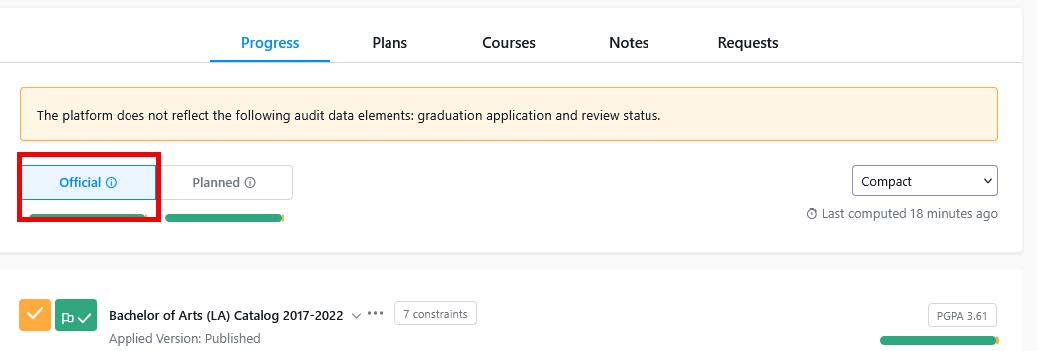
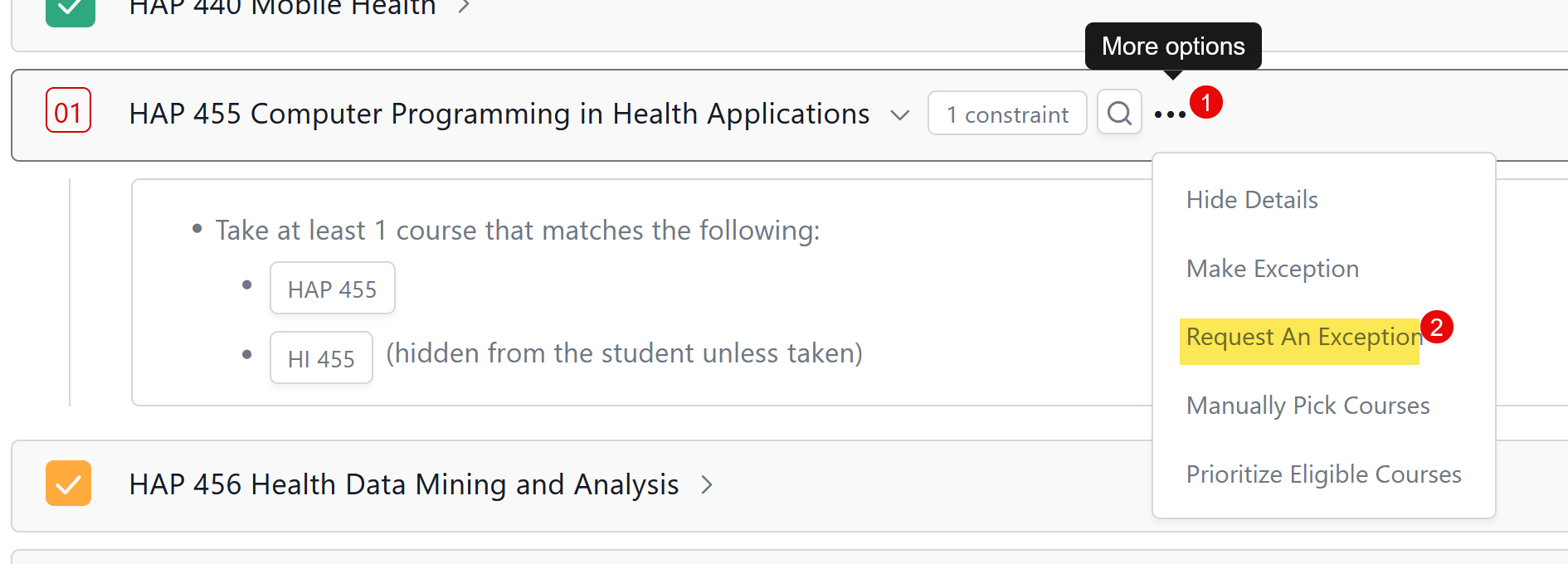
Scroll to the requirement for which you want to request an exception.
- Select the ellipses
- Select “Request an Exception”
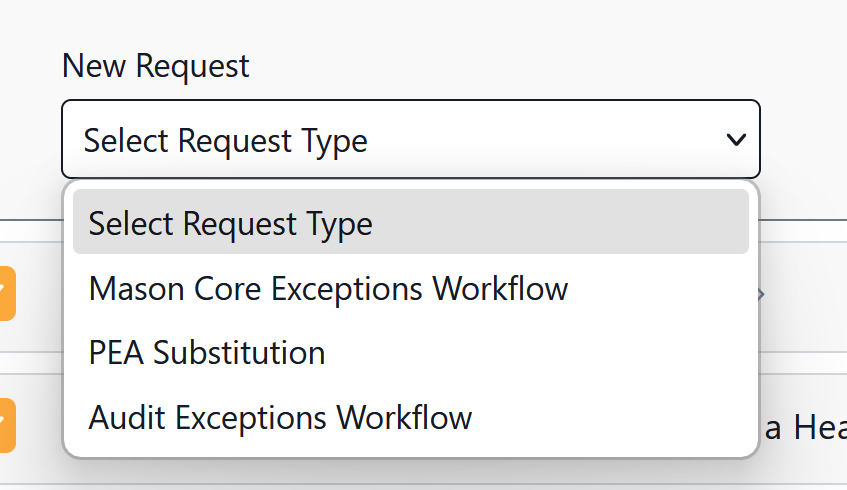
Select the type of Workflow you will use.
- Mason Core Exceptions Request workflow should be selected for:
- Exception requests for Mason Core Requirements (more information can be found here)
- PEA Substitutions Request workflow should be selected for:
- Substitutions that only require advisor or department approval, as noted in the University Catalog
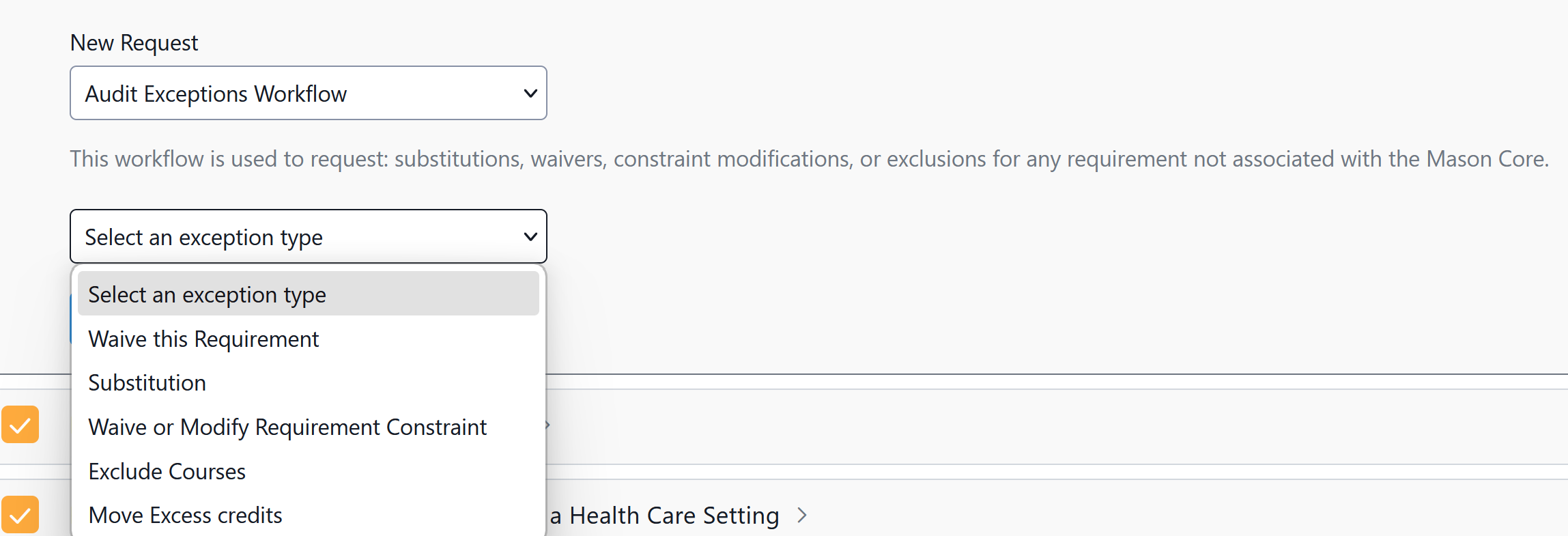
- Audit Exceptions Request workflow should be selected for:
- Substitutions
- Waivers
- Exclude Courses
- Waive or Modify Requirement Constraint
Select the Exception type
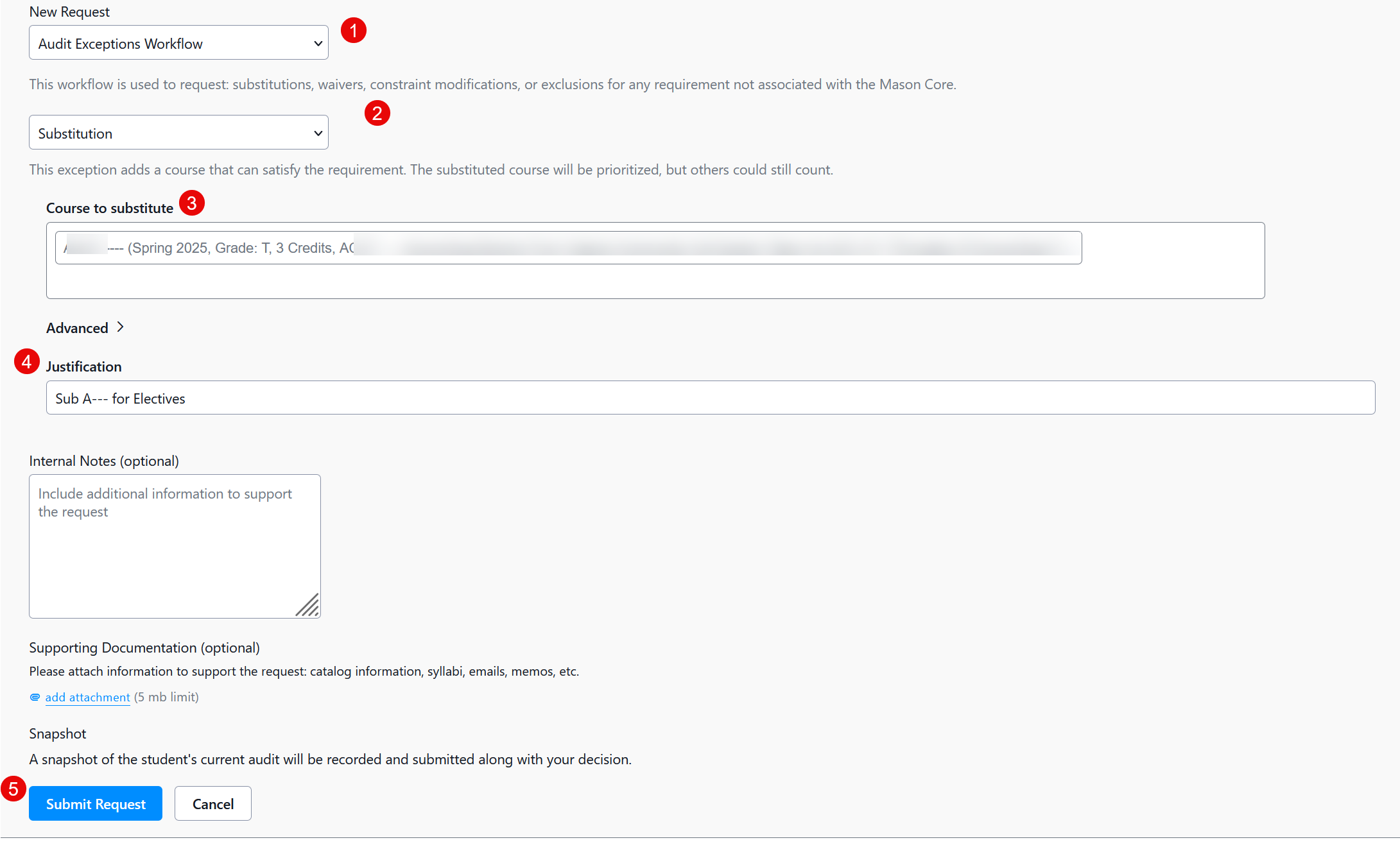
Substitution
- Select the course you want to substitute
- Add a justification
- Select Submit Request
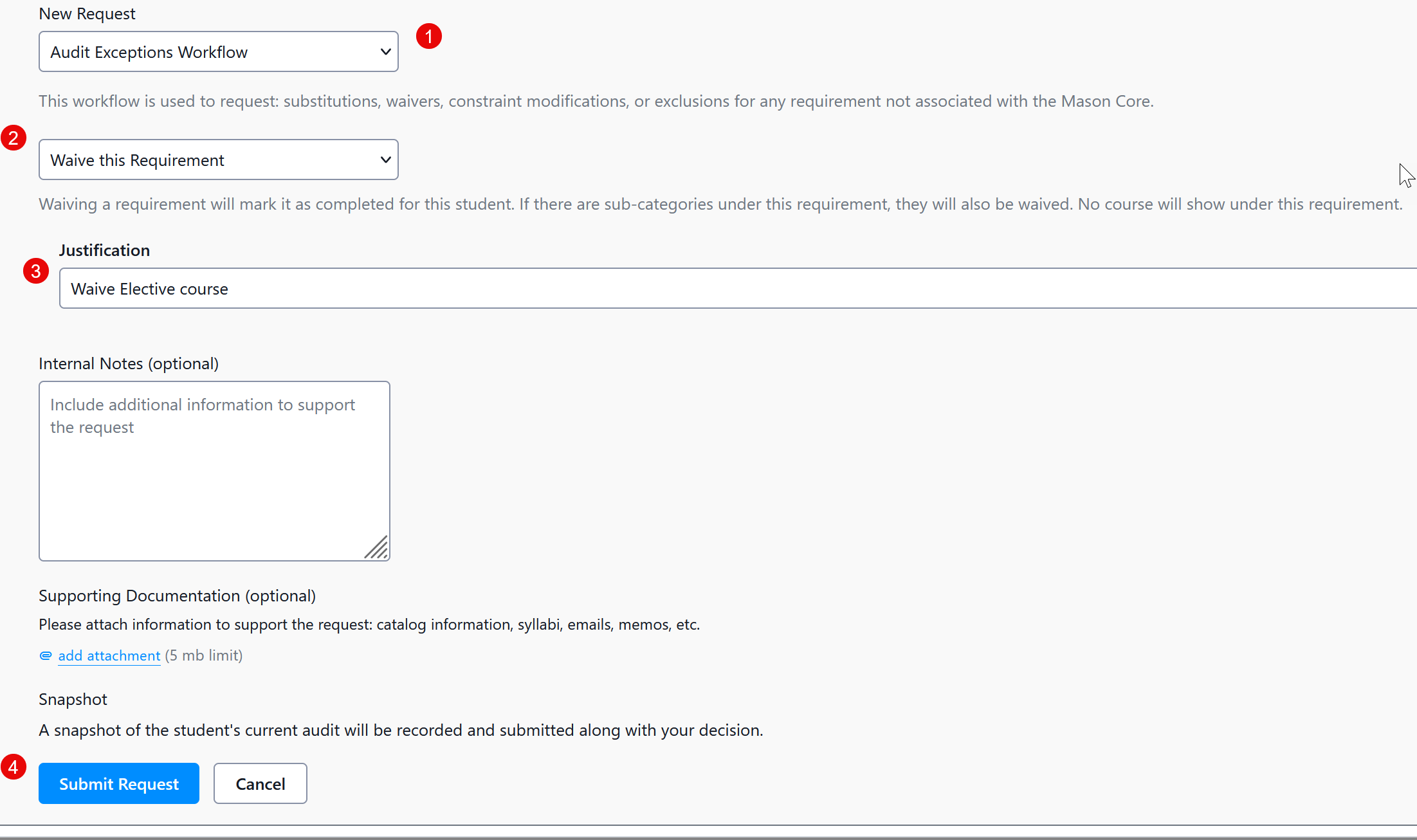
Waive this Requirement
- Select the requirement you want to waive
- Add a Justification
- Select Submit Request
Waive or Modify Requirement Constraint
- Note: This is not available at the course level
- Select Modify or Waive for the constraint you are changing or waiving (i.e. to reduce the number of required credits)
- Modify the number of credits
- Add a Justification
- Select Submit Request

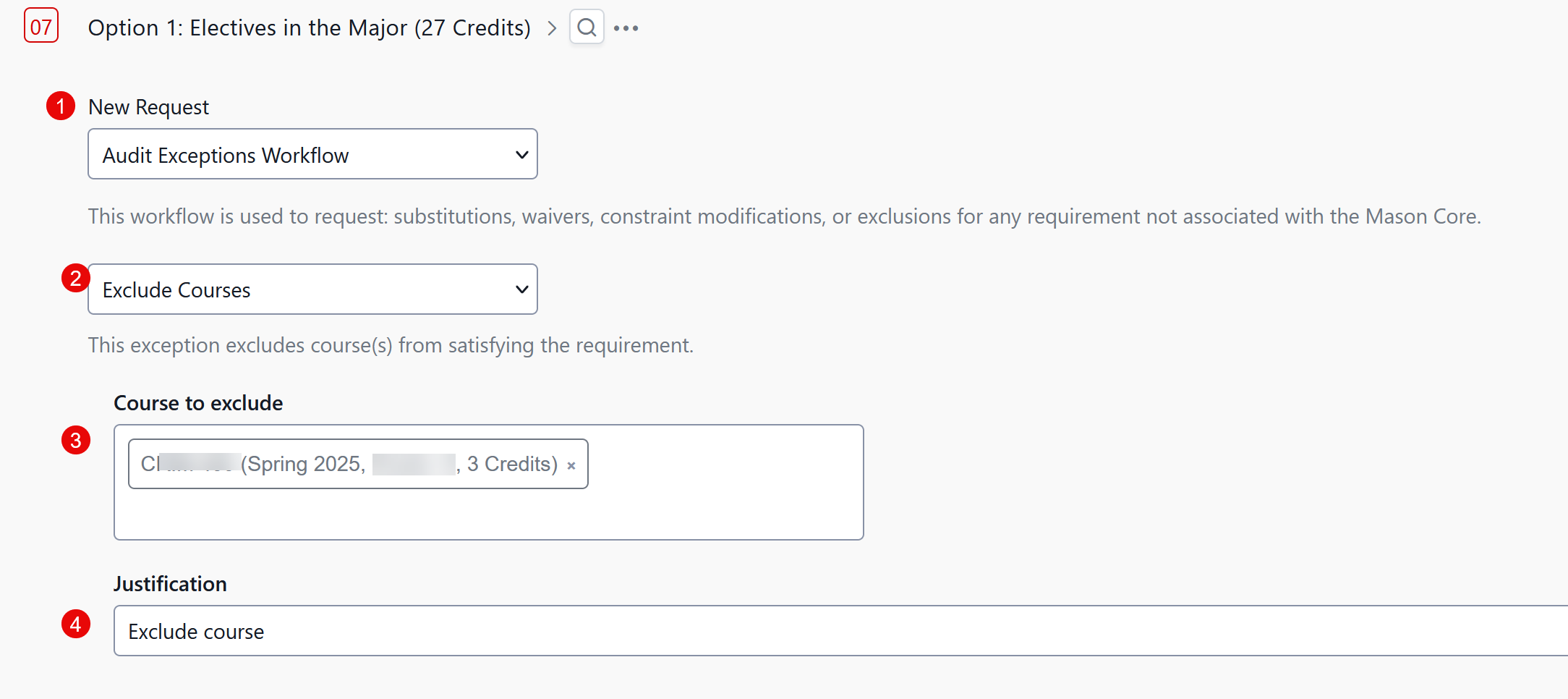
Exclude Courses
- Select the course you want to exclude
- Add a Justification
- Select Submit Request
Advanced Options Information
When requesting an exception in the Mason Degree Audit, users can select the following Advanced options:
- Override course eligibility and secondary constraint limits (Select if advisor intends to add a course that would not meet the minimum requirements)
- Override grade-based constraints (Select if advisor intends to use a course that does not meet the minimum grade requirement)
- Apply exception on this course everywhere it appears on all the student’s audits (Select if advisor intends the exception to apply across programs and/or requirements)
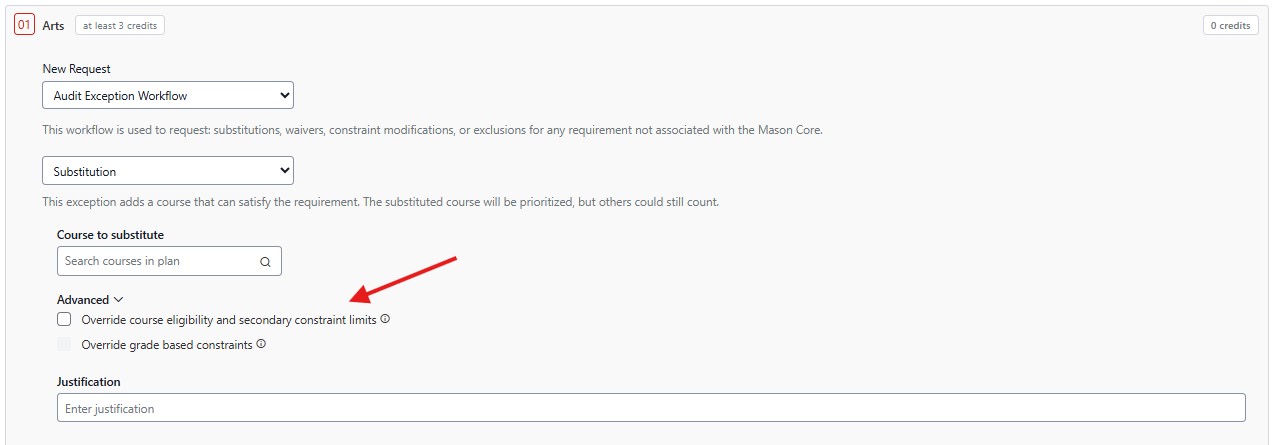
If any of these options are selected, please provide the justification for selecting the option in the justification box for the exceptions. Level 1, Level 2 and OUR approvers will check for a justification and may deny the request if one is not provided.
Pending Exception Request
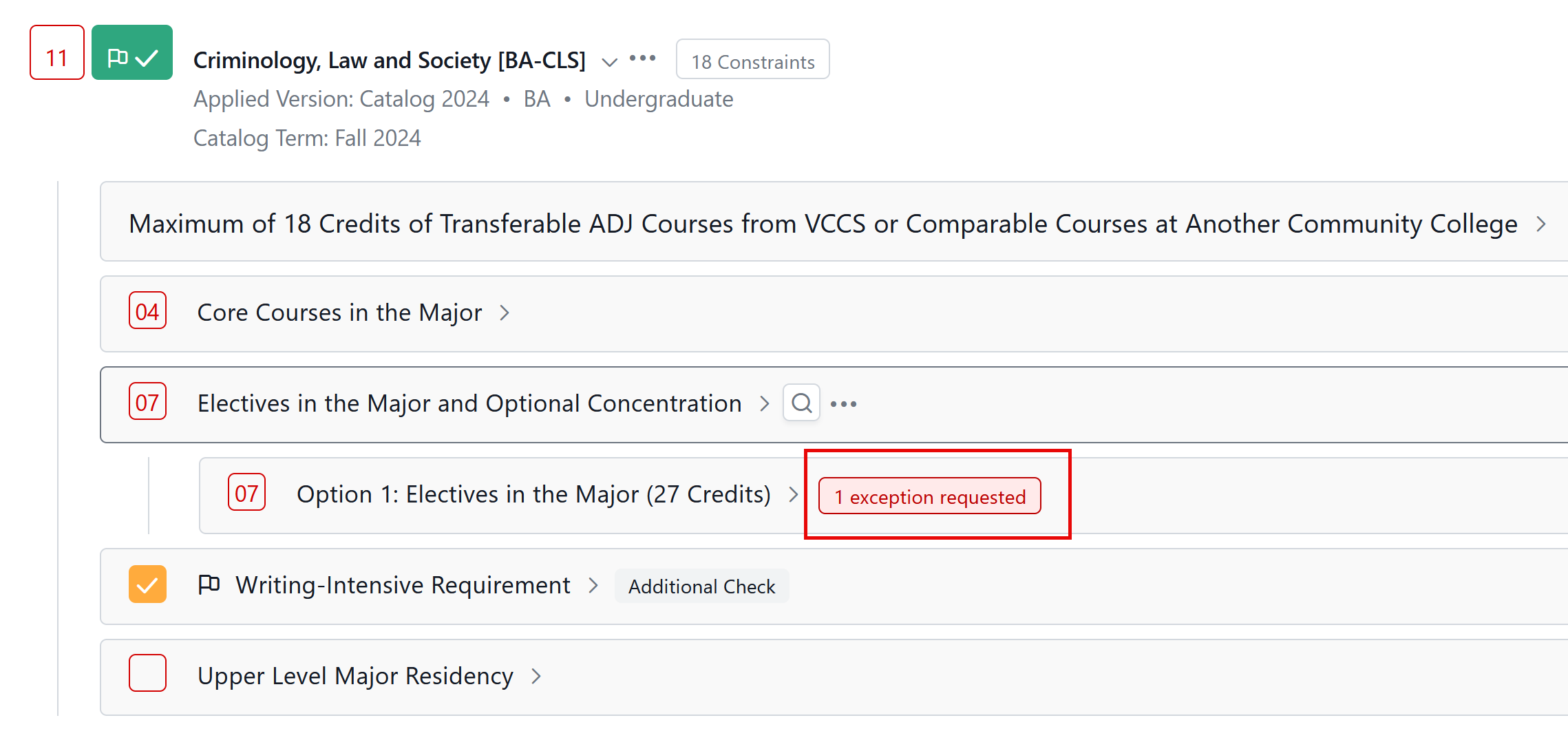
- After an exception has been submitted, “Exception Requested” will appear in the degree audit an don the student’s “Requests” tab
- The request has now moved into the appropriate workflow for approval
Search Topics
More results...