Class Lists
The class list for each instructor’s section is available via Patriot Web. Only sections with enrollment will have a class list/roster available. The class list on Patriot Web is considered the Official class list once the Last Day to Drop for the semester has passed; however, instructors are responsible for verifying that all students attending their classes are officially enrolled by the Last Day to Add for the semester. Students not officially enrolled by the Last Day to Add should be referred to the Department Chair (Office of Student Success and Academic Services within the School of Business) for an exception to policy and late registration procedures, if approved.
Instructors log into Patriot Web using their user ID and password and can view and/or print the list of students enrolled and waitlisted (if applicable) for their sections. After logon, click on “OPEN FACULTY DASHBOARD” within Faculty Self Service and you will be given various options.
For information on a specific topic, please click the link below:
- View Your Class List
- For Advisors
- For Faculty
- Email Your Class List
- Export Your Class List to Excel
- Confidentiality Indicator
View Your Class List
Faculty and Advisors can quickly navigate to their tiles by using the “Faculty & Advisor” item at the top of the Experience landing page:
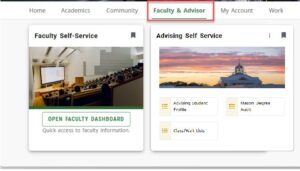
For Advisors:
- Log on to Patriot Web.
- In the Advising Self-Service tile, select “Class/Wait Lists”.
*If you do not have this card and advise students, please contact ITS Support Center.
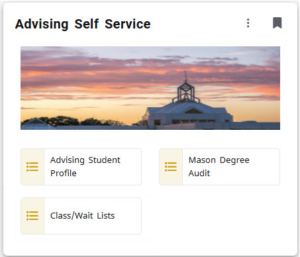
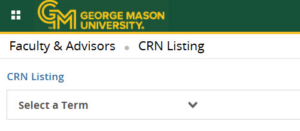
- Select the Term.
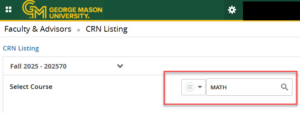
- On the top right, enter the course subject, course number, CRN, or title to narrow the results.
- Select the course you want to view from the results below.
For Faculty:
- Log on to Patriot Web.
- In the Faculty Self-Service tile, select “Open Faculty Dashboard.” The Advisee Search will open.

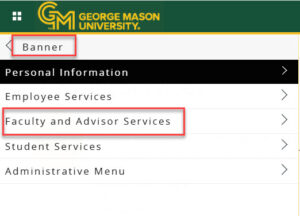
- From the Faculty Services page, use the 4-tile icon in the upper left corner to navigate to the Banner menus.

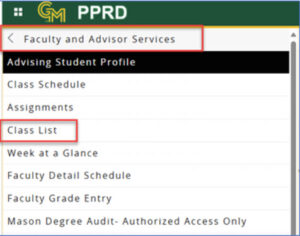
- Expand “Banner” then “Faculty and Advisor Services”.
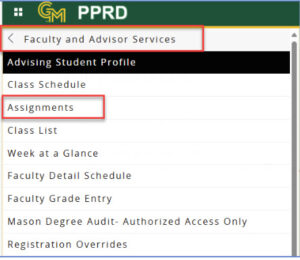
- Faculty class lists are accessible through both the “Assignments” and “Class List” links. “Assignments” will display all teaching assignments for the term.
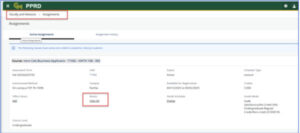
- Clicking on the “Roster/Class list” link will take you to the list of students.
- Note: The class schedule is also available from the “Detail Schedule” display link off the “Assignments” page. “Detail Schedule” will provide a course overview, scroll down for the schedule and additional information.
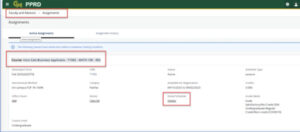
- Clicking on the “Roster/Class list” link will take you to the list of students.
- “Class List” shows all the CRNs for the term. Use this to look up other courses which you are not assigned.
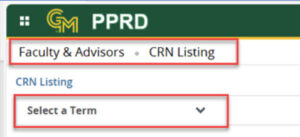
- You will have to select the term code from a drop-down list.
- All CRNs for the term appear in ascending order by CRN. Search for the course using CRN or other elements like subject code.
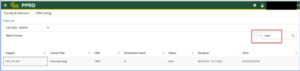
- You get the following information based on which column detail is selected, but you must click the links for the course. If you click the header instead, it will take you to the details for the first CRN of the term: Subject, Enrollment Count, Status, Duration, and Term all provide the class list (and waitlist) information.
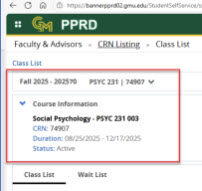
- Course Title presents the catalog entry for the course.
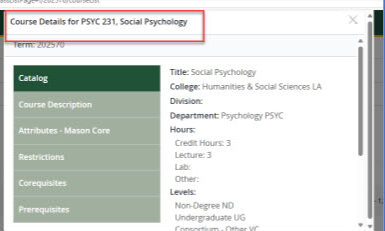
- CRN presents the class details for the course.
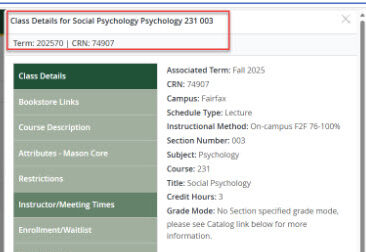
- You will have to select the term code from a drop-down list.
Email Your Class List
Patriot Web provides an option for emailing all students in a class or on a class waitlist.
This feature will send a semicolon-separated list of Mason email addresses directly to your default mail program.
*It is highly recommended that you type your Mason email address in the To: field of your message, and paste the list of student email address into the Bcc: field (blind carbon copy). This eliminates the need for recipients to scroll through a lengthy list of addresses at the beginning of your message and will also protect the identity of students having a confidential indicator.
NOTE: Any student that has a confidential indicator must be treated with extreme care. Mason is legally obligated to ensure that this person’s email address is not visible to anyone else. Email correspondence with students that have a confidential indicator must be sent either individually (not as part of a group) or as a blind carbon copy (Bcc).
Directions:
- First, follow the instructions above to view your class list.
- Click the check box next to Student Name, this will select all students in the class. This function is only available for emailing the entire class. Individual student emails cannot be sent using this feature.
- Click on the blue envelope icon.
- This will launch your default email program with a new message window. Copy the list to the Bcc field and enter your email address in the To field. You may then compose and send your message as you normally would.
Export Your Class List to Excel
Exporting your class list (or waitlist) from Patriot Web into Excel is an available feature.
Instructions:
- First, follow the instructions above to view your class list.
- Click “Export” at the top right of the screen.
- Select either .xls or .xlsx file format. Then click “Export.”
- Find the downloaded file and open in Excel or another spreadsheet program.
- Resize columns as necessary
- From the File menu, click “Save” to save your workbook.
Note: Any changes that occur in the Patriot Web class list will not be reflected in your Excel workbook.