Class List Search
A Mason Degree Audit class list is a customizable report of student information generated by selecting a specific course subject and number or by CRN. The class list functions as the Mason Degree Audit’s version of a class roster, allowing advisors to view and export the student data associated with a particular course. Additional course details are still available in Banner self-service, and advisors can use that information alongside the class list they generate in the Mason Degree Audit.
Class List Search in the Mason Degree Audit
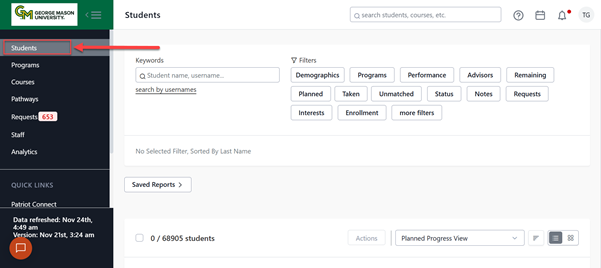
- After you log into Stellic, on the top left of the page, click on “Students”.
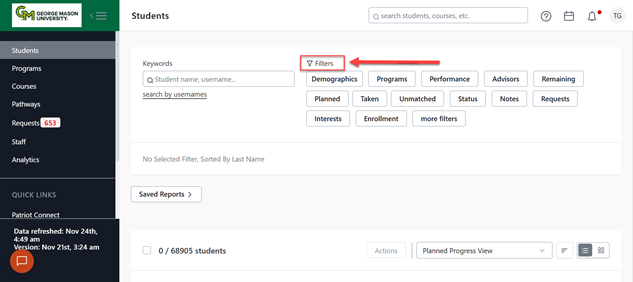
- Locate the “Filters” section at the top middle of the page.
- Click “Enrollment”.

- Select the desired “Academic Term”.
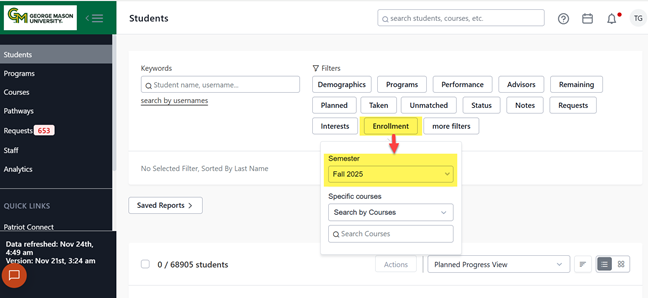
- Select “Specific Courses”
- “Search by Courses” type in the subject code and course number (ex. GGS 101)

- “Search by Class Numbers” type in the course registration number (CRN, ex. 73055)
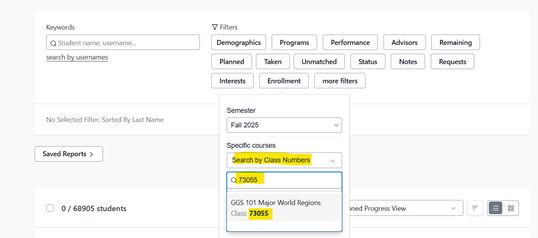
- “Search by Courses” type in the subject code and course number (ex. GGS 101)
- Select desired course(s) or CRN(s) using check box(es)

- Locate students list
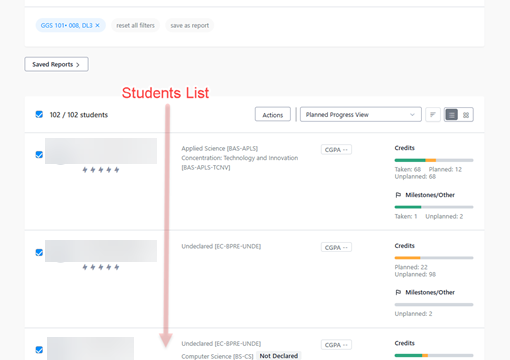
- Use the left side check box(es) to select the desired student population. You may select all applicable students or needs-specific students.
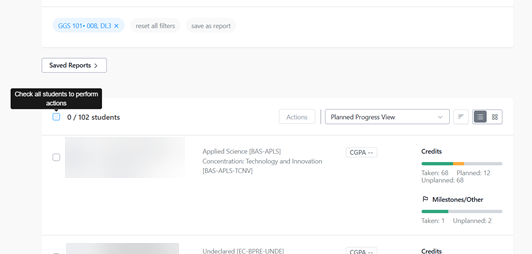
- Click “Actions”

- Click “Generate Report for xxx Students”

- Click “Student Information”

- Select the desired variables using the check boxes.

- Click “Download CSV”

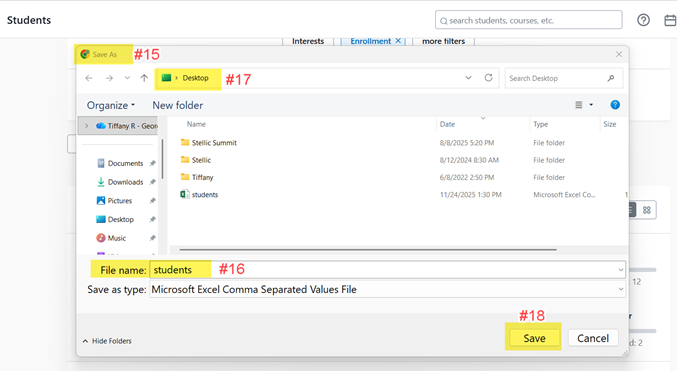
- A pop-up window will ask you to “Save As” the CSV file
- Name your “File Name”
- Select save as location
- Click “Save”