Degree Audit FAQ

Workflow Routing Steps
- Advisor Submits Exception Request
- Level 1 Approvers (Department level)
- Equivalent to the Department signature on the Sub/Waiver PDFs
- Exceptions applied to Mason Core and Degree-level requirements are routed to Undergraduate Education for approval
- Level 2 Approvers* (College level)
- Equivalent to the Dean signature on the Sub/Waiver PDFs
- Exceptions applied to Mason Core and Degree-level requirements are routed to Undergraduate Education for approval
- OUR review
- Once approved at this step, the exception is considered fully approved and is out of workflow.
*This step is skipped for the PEA Workflow
Reviewing Exception Requests
- If you have pending requests to review, they will receive a notification in the platform.
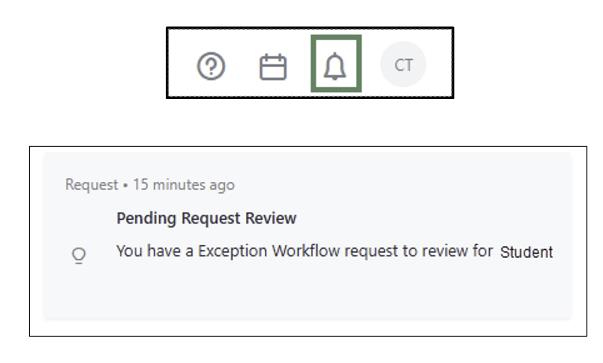
- Click on the “Requests” tab (left side menu in the Degree Audit)

- Click on “Audit Exceptions Request” for the student exception you need to review. The exception information will open.
- Review the exception details and justification.

- Select Start
- Select Approve or Deny Request as appropriate

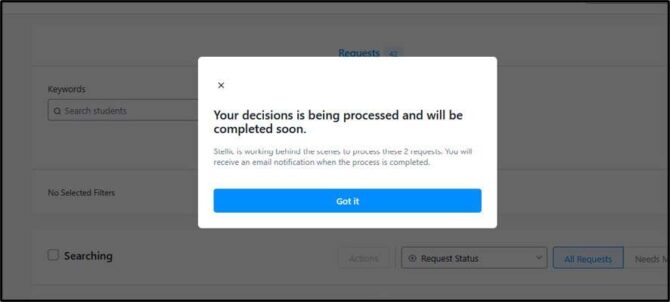
Send Back Exception Requests
Effective Monday, October 19, 2026, for the Audit Exceptions Request and Mason Core Exceptions Request workflows, Level 2 Approvers will now have access to be able to send an exception back to a previous step.
- After selecting “Start”, users will see “Not enough information? Send back to a previous step.”
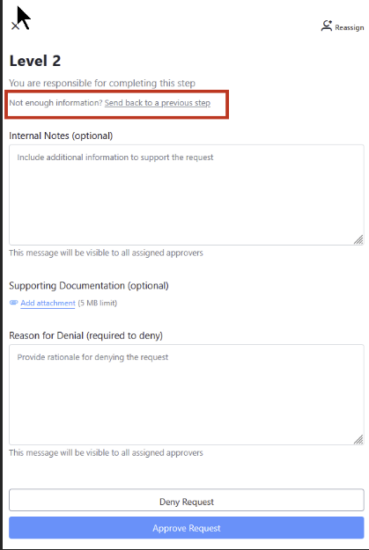
- You can select which step you would like to send the request back to.
- “Reason for Sending Back” is required. Please note this information is visible to students.
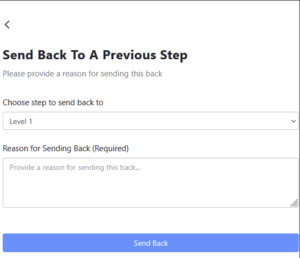
- “Send back” will appear in the Request History.
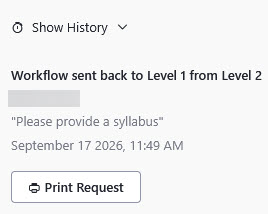
- Depending on the user’s notifications settings, they will either see an in-app notification and/or receive an email stating that they have a “Send Back Request” to review.
- After the “Send Back”, the workflow can proceed as normal.